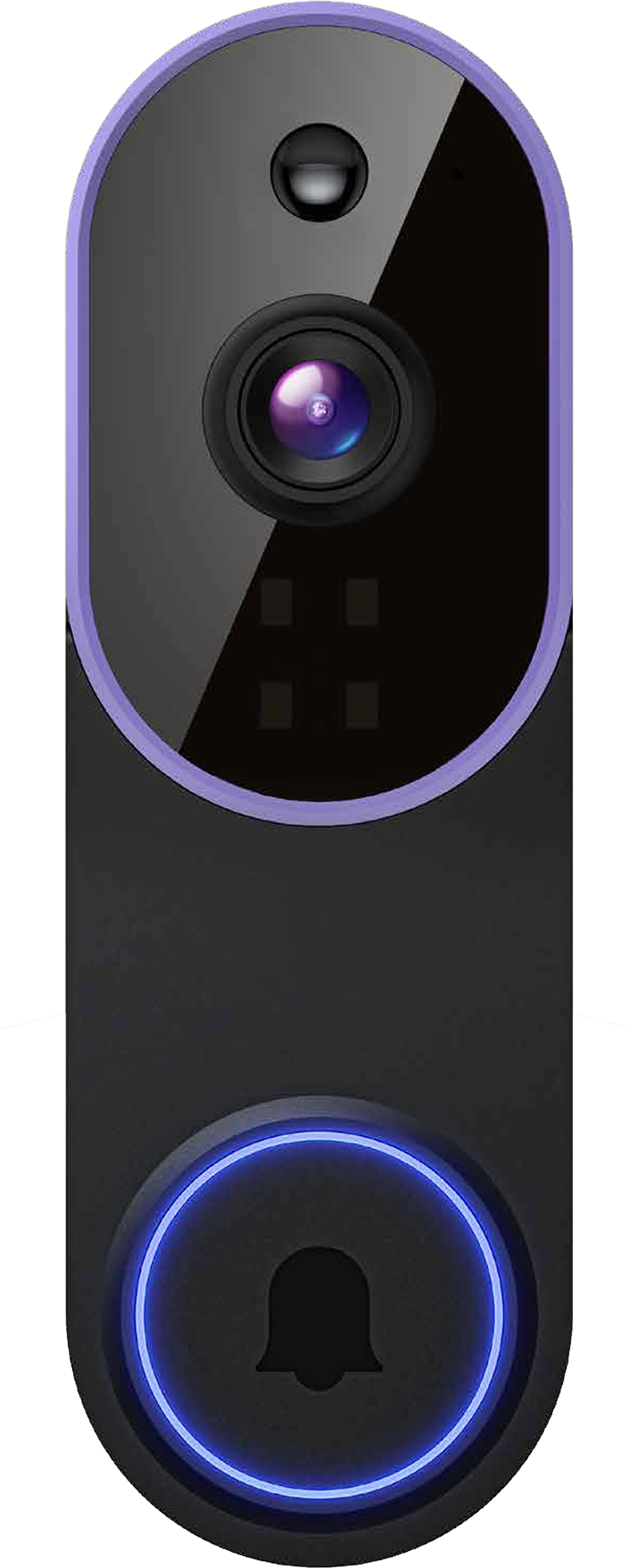
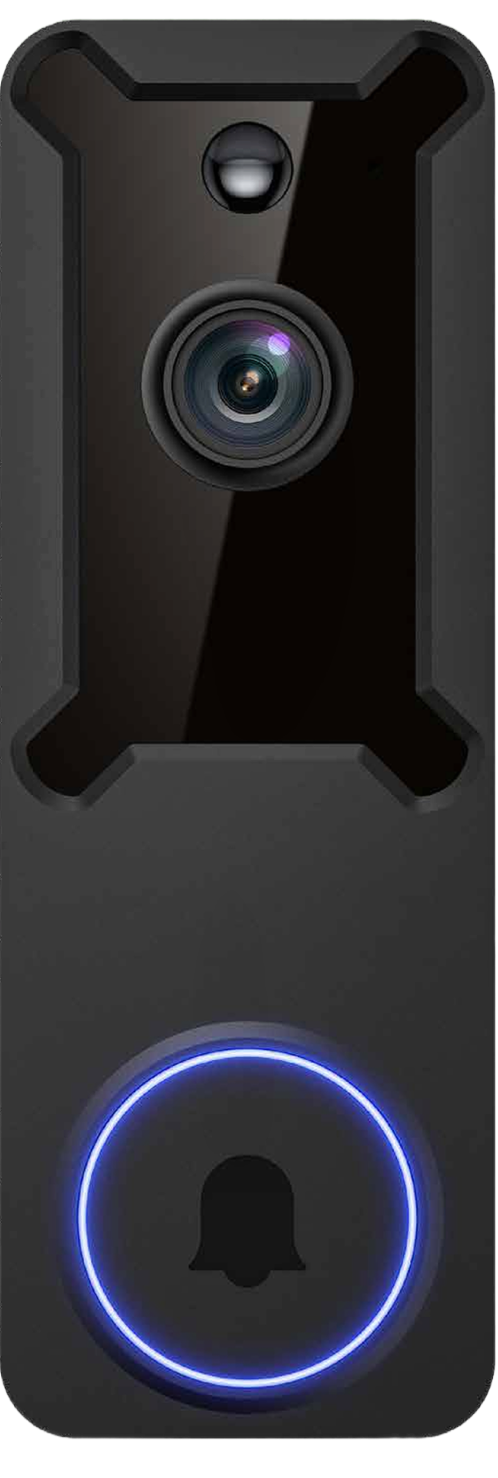
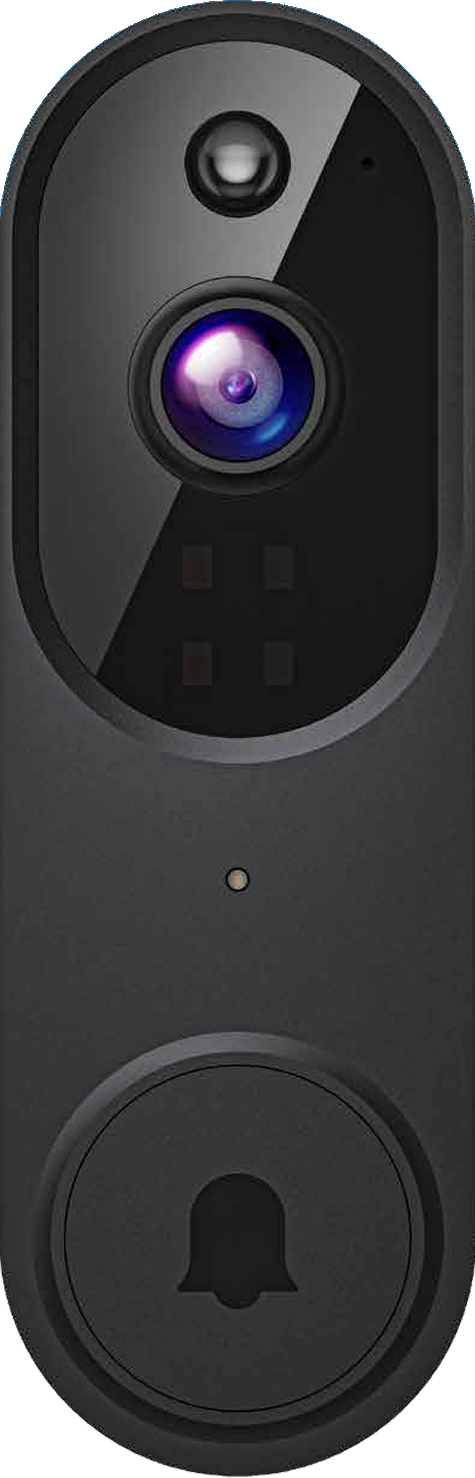
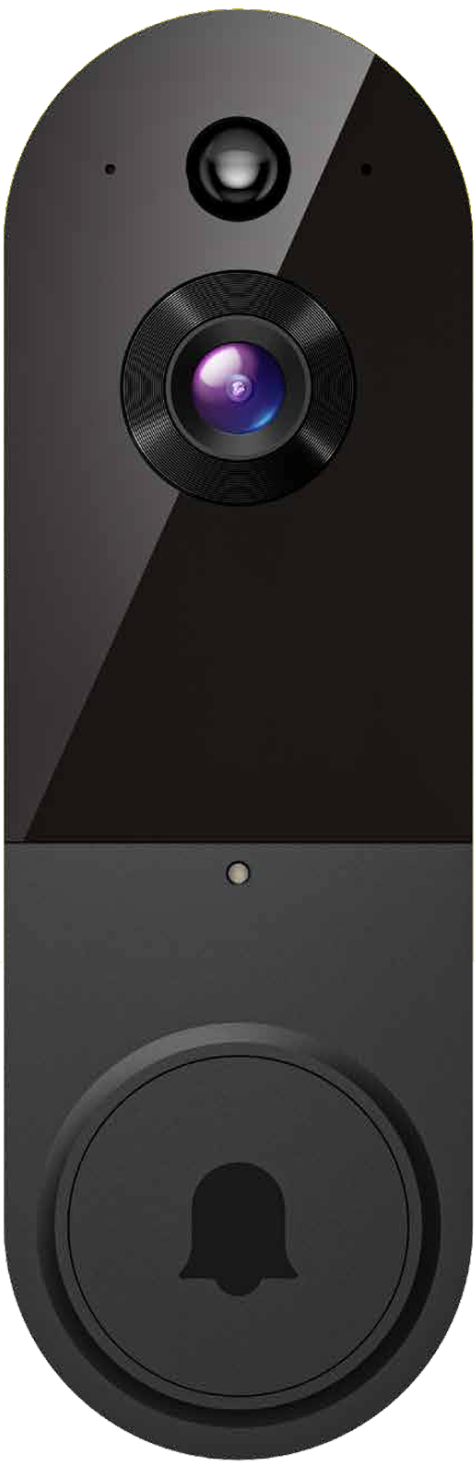
Doorbell Camera

QR Code

Scan the code
to view the user manual – M21

Download App
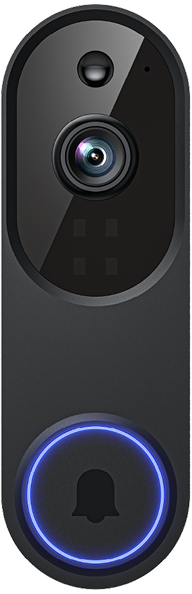
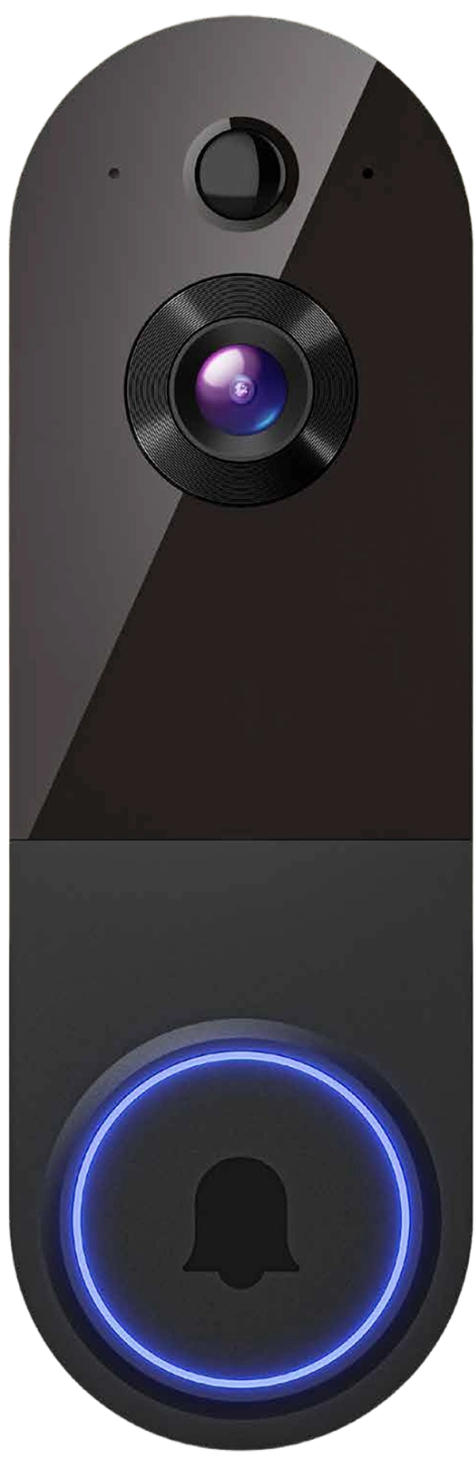
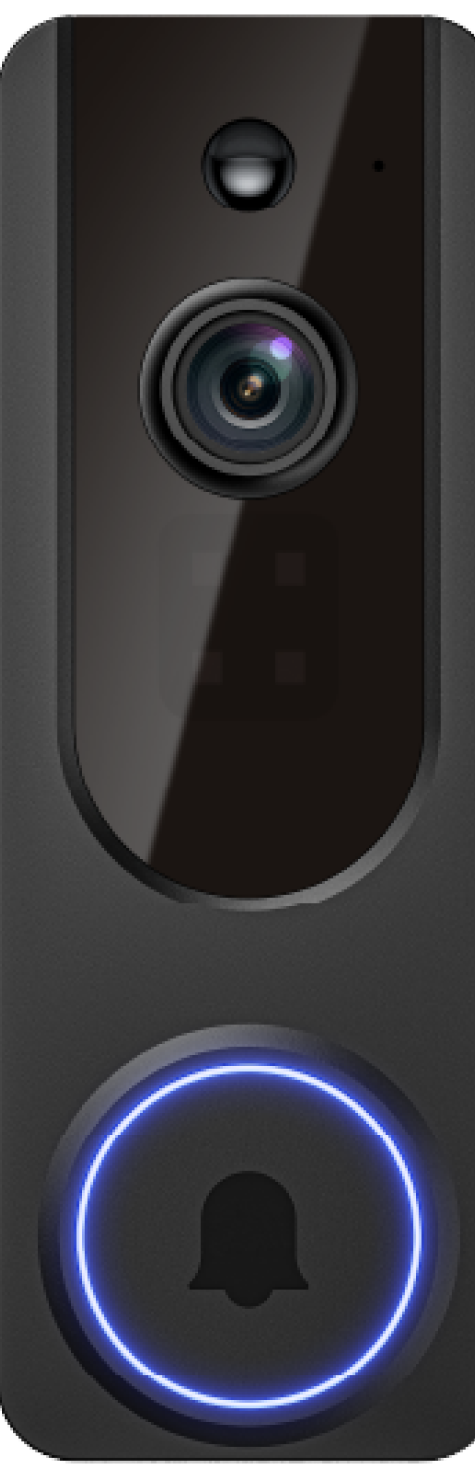
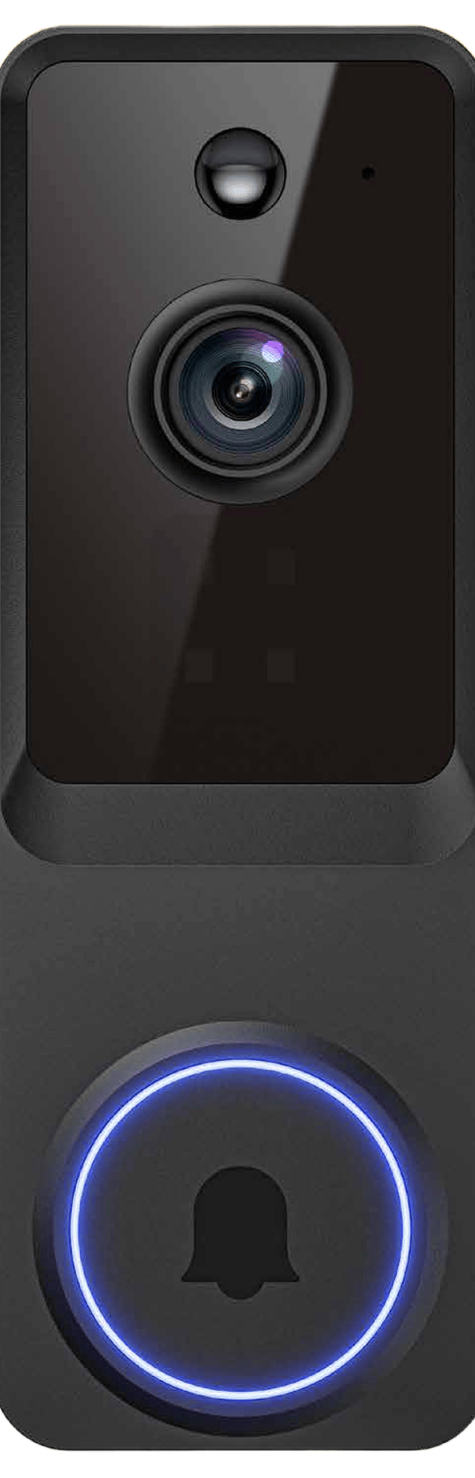
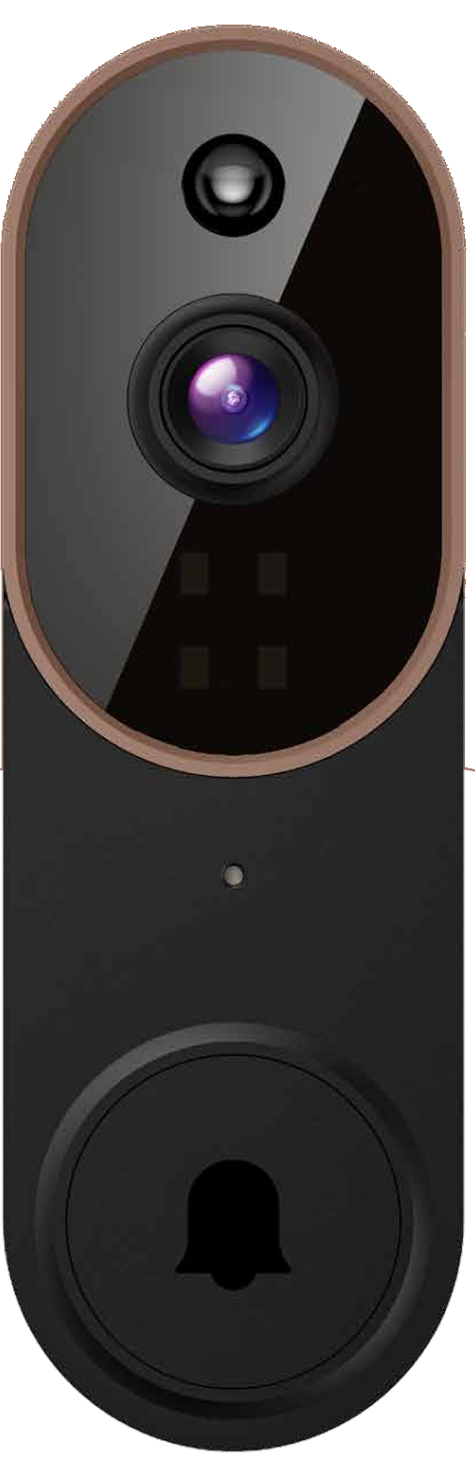
Doorbell Camera M21
Features
  • 1. Motion Sensor
  • 2. Wide-angle Lens
  • 3. Indicator Light
  • 4. Speaker
  • 5. Microphone
  • 6. Infrared Lights
  • 7. Doorbell Button
  • 8. Type-C Charging Port
  • 9. Power Button
Features Diagram Features Diagram
In the Box
  • 1. Doorbell Camera
  • 2. Mounting Bracket Removal Tool
  • 3. Type-C Cable
  • 4. User Manual
Indicator Light
Status Meaning
Flashing RED The device is disconnected from Wi-Fi. It will attempt to reconnect automatically. If it fails, please reset the device and pair it again in the app.
Flashing RED & BLUE Alternately Low battery. Please recharge the device.
Flashing BLUE The device is recording.
Solid RED The device is charging.
RED Light Turns OFF The device is fully charged.
Indicator Light
Recharge Your Doorbell
  1. Remove the Mounting Bracket
    To do this, press the button on the top of the doorbell as shown in the diagram.
  2. Recharge Your Doorbell Before First Use
    Use the provided Type-C Cable to charge your doorbell. It takes approximately 10 hours to fully charge, depending on the power source. Please note that you should use a power source of at least 5V1A.
A solid RED light indicates that the doorbell is charging. When the doorbell is fully charged, the RED light will turn off.
Recharge Steps Recharge Steps
Create an Account in the App
  1. Scan the QR code or search for Camtro App in the Apple App Store or Google Play. Then download and install the app.
  2. Open the app on your cellphone and tap Sign up.
  3. Enter your email address, set a password, and tap Sign up.
  4. After activating your account with the email link, log in to the app using your email and password.
  5. Re-open the app, enter your email address and password, and tap Log in.
Step 1 Step 2 Step 3 Step 4
Set Up Your Doorbell in the App
  1. 1.Prepare Your Phone
    • Ensure your phone is connected to a 2.4GHz Wi-Fi network.
    • Make sure your phone's Bluetooth is turned on.
  2. 2.Open the App
    • Sign in to your account.
    • Tap the "+" (Add Device) button.
  3. 3.Add the Device
    • Select "Video Doorbell" and choose the M21 model.
Setup Step 1–3
  1. 4.Activate Pairing Mode
    • Press the power button on the back of the doorbell. You will hear: "Power on, entering Pairing Mode."
    • Once you hear "Entering pairing mode," tap "Yes."
  2. 5.Connect to a 2.4GHz Network
    • Go to your phone's Wi-Fi settings and connect to a 2.4GHz Wi-Fi network.
    • Note: 5GHz Wi-Fi is not supported.
    • Return to the app and tap "Next."
  3. 6.Set Up Wi-Fi Connection
    • Select your 2.4GHz Wi-Fi network or enter it manually.
    • Input the Wi-Fi password, then tap "Next."
  4. 7.Confirm Connection
    • Verify the Wi-Fi name and password, then tap "Confirm."
  5. 8.Scan QR Code (Optional)
    • If prompted, use the doorbell's camera to scan the QR code displayed on your phone.
  6. 9.Complete Setup
    • Once you hear "Device registration successful," your setup is complete.
    • Tap "Confirm."
Setup Step 4–9
Change Wi-Fi Network
If you need to change the Wi-Fi network :
  • 1. Press and hold the Doorbell Button for 8 seconds.
  • 2. When you hear "Entering pairing mode," tap "Yes."
  • 3. Follow steps 5-9 above to reconnect to a new 2.4GHz Wi-Fi network.
Install Your Doorbell
  1. Remove the Mounting Bracket
    Insert the removal tool into the slot on the top of the doorbell and press down to release the bracket.
  2. Mount the Bracket to the Wall
    Mark the drill holes on the wall using the bracket as a guide. Drill the holes, insert the provided anchors, and secure the bracket firmly with the mounting screws.
  3. Attach the Doorbell
    Slot the bottom of the doorbell into the bracket first, then press the top until it clicks securely into place.
Step 1 – Remove Bracket Step 2 – Mount Bracket Step 3 – Attach Doorbell
Frequently Asked Questions

1. How can I share the device with family members?

Open the app and tap on Settings. From there, you can share the device via QR code or email, and even transfer ownership of the device. The new user must first download the app and create their own account.

2. Why can't I change the settings?

Only the owner account can change settings, delete videos, and share the device. Shared accounts do not have these options.

3. How many users can view the device at the same time?

The owner account can share the device with up to 8 other accounts. Up to 3 users may view the video feed at once, but only 1 user can use the intercom.

4. Is the 5GHz Wi-Fi supported?

No, the camera only works with 2.4GHz Wi-Fi. Please separate two Wi-Fi bands by giving the 2.4GHz and 5GHz networks each a unique separate SSID (network name). Then connect your device to the 2.4GHz Wi-Fi.

5. Why is my Wi-Fi signal weak?

Your camera may be too far from your wireless router, or there may be obstructions reducing signal strength. You might want to reposition your router or get a signal extender/repeater.

6. Why is the camera offline?

The camera being offline means it is disconnected. There could be a few reasons for this:

  1. If the camera has run out of power, you will need to recharge it.
  2. The Wi-Fi signal is weak, causing disconnection. Please improve your Wi-Fi signal and reconnect the device.
  3. If the Wi-Fi is unstable, the device might go offline or experience interruptions frequently. You can try restarting the router and reconnecting the Wi-Fi to see if it helps. A good Wi-Fi connection is essential since the device is outside the house.

7. How can I adjust the human detection accuracy?

Open the app and tap on Settings. Then tap on Motion Settings. Here, you can select the desired human detection accuracy from three options: low, medium, and high. We recommend choosing medium. The high setting provides the strictest detection level, meaning the device will be triggered only when it is entirely certain that the moving object is a human. However, this stringent setting might cause the device to overlook a human figure, resulting in a missed notification.

High Accuracy The device will record videos less frequently, ensuring maximum battery life.
Medium Accuracy Medium battery life.
Low Accuracy The device will record videos more frequently, leading to the shortest battery life.

If the areas you're monitoring experience excessive or repetitive motions, like children playing in the yard, you may receive numerous alerts, which can rapidly deplete the battery of devices. The human detection accuracy settings are designed to help you receive the notifications you want while preserving battery life.

8. How can I enable notifications on my phone?

  1. Open the app. From the Device page, tap the Settings icon, then tap the Motion Detection icon. Here, you can choose whether to turn Motion Alerts on or off.
  2. Open your phone's settings. Navigate to "App Management" and "Notification Settings," then locate the app. Ensure all permissions and notifications are enabled for the app.
Contact Us

If you require further assistance, feel free to reach out to our support team. Email us at service@camtro.cc or use the app's support feature. Please include your product's model and the retailer's name. Thank you.

Contact Us – App Chat
FCC Statement

Product Name: Doorbell Camera
Model: M21
FCC ID: 2BR3K-DOORBELL-M21
Power supply: Rechargeable Li-ion Battery DC 3.7V

Manufacturer: HK EKO ELECTRONICS LIMITED
Address: FLAT/RM 1 14/F HENLEY INDUSTRIAL CENTRE,
9-15 BUTE STREET, MONG KOK KL, HONGKONG, China

Information to User

Important: Changes or modifications not expressly approved by the party responsible for compliance could void the user's authority to operate the equipment.

Note: This equipment has been tested and found to comply with the limits for a Class B digital device, pursuant to Part 15 of the FCC Rules. These limits are designed to provide reasonable protection against harmful interference in a residential installation. This equipment generates uses and can radiate radio frequency energy and, if not installed and used in accordance with the instructions, may cause harmful interference to radio communications. However, there is no guarantee that interference will not occur in a particular installation. If this equipment does cause harmful interference to radio or television reception, which can be determined by turning the equipment off and on, the user is encouraged to try to correct the interference by one or more of the following measures :

  • — Reorient or relocate the receiving antenna.
  • — Increase the separation between the equipment and receiver.
  • — Connect the equipment into an outlet on a circuit different from that to which the receiver is connected.
  • — Consult the dealer or an experienced radio/TV technician for help.

This device complies with part 15 of the FCC rules. Operation is subject to the following two conditions (1) this device may not cause harmful interference, and (2) this device must accept any interference received, including interference that may cause undesired operation.

This equipment complies with FCC radiation exposure limits set forth for an uncontrolled environment. This equipment should be installed and operated with minimum distance 20cm between the radiator & your body.

EU & UK Compliance Notice

CE Simplified EU Declaration of Conformity

This device is in compliance with the essential requirements and other relevant provisions of directives 2014/53/EU.

Test standards:

  • EN IEC 62311:2020
  • EN IEC 62368-1:2024+A11:2024
  • ETSI EN 301 489-1 V2.2.3 (2019-11)
  • ETSI EN 301 489-17 V3.3.1 (2024-09)
  • ETSI EN 300 328 V2.2.2 (2019-07)

UKCA Simplified UK Declaration of Conformity

This device is in compliance with the essential requirements and other relevant provisions of the Radio Equipment Regulations (S.I. 2017 No. 1206).

Test standards:

  • BS EN IEC 62311:2020
  • BS EN IEC 62368-1:2024+A11:2024
  • ETSI EN 301 489-1 V2.2.3 (2019-11)
  • ETSI EN 301 489-17 V3.3.1 (2024-09)
  • ETSI EN 300 328 V2.2.2 (2019-07)

EC REP

Company Name: E-CrossStu GmbH
Address: Mainzer Landstr. 69, 60329 Frankfurt am Main

UK REP

Company Name: YH Consulting Limited
Address: C/O YH Consulting Limited Office 147 Centurion House London Road Staines-upon-Thames Surrey TW18 4AX

This device is in compliance with the Directive (EU) 2015/863 – Amendment of EU RoHS Directive 2011/65/EU Annex II.

Test standards:

  • IEC 62321-3-1:2013
  • IEC 62321-4:2013+AMD1:2017
  • IEC 62321-5:2013
  • IEC 62321-6:2015
  • IEC 62321-7-1:2015
  • IEC 62321-7-2:2017
  • IEC 62321-8:2017
Proper Disposal Instructions

Old electrical appliances must not be disposed of together with the residual waste, but have to be disposed of separately. The disposal at the communal collecting point via private persons is for free. The owner of old appliances is responsible to bring the appliances to these collecting points or to similar collection points. With this little personal effort, you contribute to recycle valuable raw materials and the treatment of toxic substances.